Typing special characters may seem difficult at first, especially when the symbol you need is not printed on your keyboard. The good news is that every modern device includes built-in ways to insert these symbols. Whether you use Windows, macOS, Android, an iPhone, Microsoft Word, or Google Docs, you can quickly type everything from © and ™ to €, £, ¿, ¡, and many more.
You should know the difference between Unicode, Alt codes, and special character tools, why some shortcuts stop working; and how to fix common problems.
See How to Type Special Characters? using keyboard shortcuts, Alt codes, Unicode-supported character tools, or the built-in symbol menus available on your device. Windows users can use Alt codes, Character Map, or the Emoji and Symbols panel. Use Character Viewer on Mac and extra symbols on Android and iPhone directly from your keyboard. If you only need a symbol once, the fastest way to insert it is often copying and pasting it.
What Are Special Characters?
Special characters are symbols that are not part of the standard alphabet or numbers. They include punctuation marks, currency symbols, mathematical signs, copyright marks, accented letters, and many other characters used in different languages.
Some common examples include:
- © Copyright
- ® Registered Trademark
- ™ Trademark
- € Euro
- £ Pound
- ¥ Yen
- § Section Sign
- ¶ Paragraph Mark
- ° Degree Symbol
- ¿ Upside Down Question Mark
- ¡ Upside Down Exclamation Mark
These symbols find use in writing, coding, business documents, social media posts, academic work, and graphic design. Because there are thousands of available characters, most keyboards display only the ones people use most often.
Why Can’t I Find Every Symbol on My Keyboard?
A physical keyboard can only have a limited number of keys, but computers and smartphones can support thousands of characters thanks to the Unicode standard.
Instead of giving each symbol its own key, operating systems provide various ways to access them, such as:
- Keyboard shortcuts
- Alt codes
- Character Map
- Character Viewer
- Symbol menus
- Emoji and Symbols panels
- Copy and paste
Both methods do the same thing, but they work differently depending on what operating system you have.
Understanding Unicode, Alt Codes, and ASCII
Before learning the shortcuts, it’s helpful to understand three terms you’ll often see.
Unicode
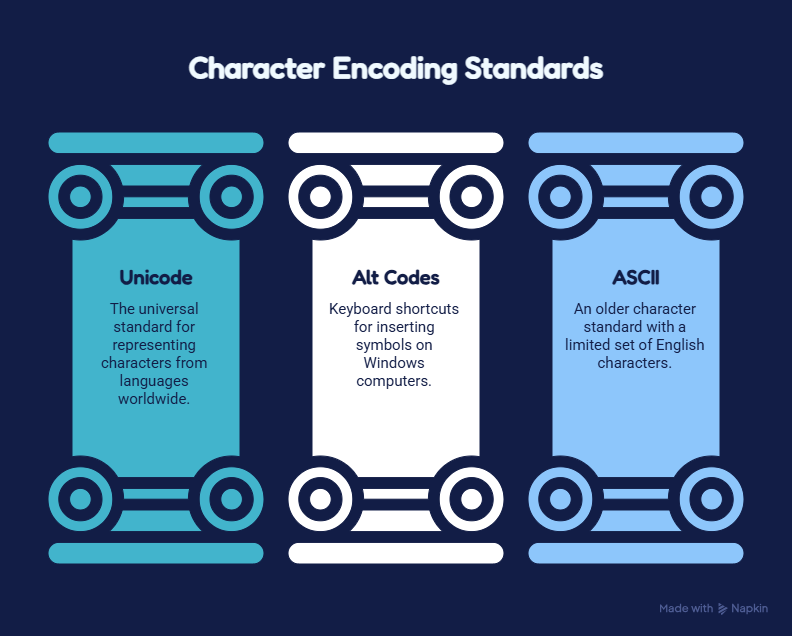
Unicode is the universal standard used to represent characters from languages around the world. Each letter, number, punctuation mark, emoji and symbol has its own unique code point.
As Windows, macOS, Android, and iPhone all support Unicode, you can generally copy a symbol from one device and paste it into another without losing it.
Take the upside-down question mark (¿) or the euro symbol (€) or the copyright sign (©), for example . These all exist because they have dedicated Unicode code points.
Alt Codes
Alt codes are keyboard shortcuts used mainly on Windows computers. They work by holding the Alt key while typing a numeric code on the numeric keypad. When you release the Alt key, Windows inserts the corresponding character.
For example:
- Alt + 0169 → ©
- Alt + 0174 → ®
- Alt + 0161 → ¡
- Alt + 0191 → ¿
Alt codes remain one of the fastest ways to insert symbols if your keyboard includes a numeric keypad.
Understanding Unicode, Alt Codes, and ASCII
Unicode
Unicode is the universal standard used to represent characters from languages around the world. Each letter, number, punctuation mark, emoji and symbol has its own unique code point.
As Windows, macOS, Android, and iPhone all support Unicode, you can generally copy a symbol from one device and paste it into another without losing it.
Take the upside-down question mark (¿) or the euro symbol (€) or the copyright sign (©), for example . These all exist because they have dedicated Unicode code points.
Alt Codes
Alt codes are keyboard shortcuts used mainly on Windows computers. They work by holding the Alt key while typing a numeric code on the numeric keypad. When you release the Alt key, Windows inserts the corresponding character.
For example:
- Alt + 0169 → ©
- Alt + 0174 → ®
- Alt + 0161 → ¡
- Alt + 0191 → ¿
Alt codes remain one of the fastest ways to insert symbols if your keyboard includes a numeric keypad.
ASCII
ASCII is an older character standard created before Unicode. It contains only a small set of English letters, numbers, punctuation marks, and control characters. Modern computers still support ASCII but Unicode has largely replaced it because Unicode includes thousands of additional characters from different languages and writing systems.
If you are typing special characters today, you are almost always using Unicode, not ASCII.
How to Type Special Characters on Windows
Windows offers several reliable methods. You don’t need to memorize every shortcut because you can choose the option that best matches your workflow.
Method 1: Use Alt Codes
If your keyboard has a numeric keypad, Alt codes are often the quickest solution.
Follow these steps:
- Turn on Num Lock.
- Place the cursor where you want the symbol.
- Hold the Alt key.
- Type the numeric code using the numeric keypad.
- Release the Alt key.
Examples:
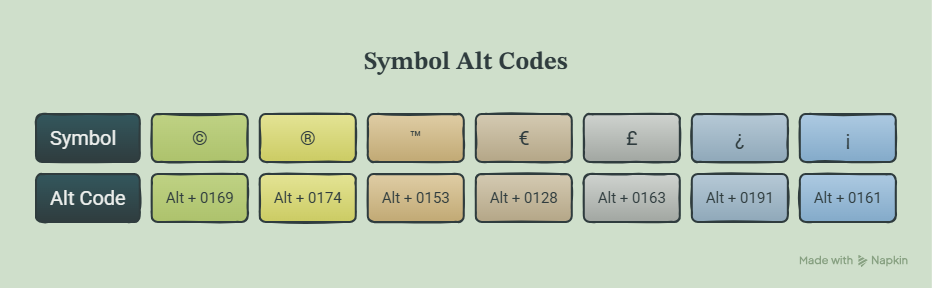
| Symbol | Alt Code |
| © | Alt + 0169 |
| ® | Alt + 0174 |
| ™ | Alt + 0153 |
| € | Alt + 0128 |
| £ | Alt + 0163 |
| ¿ | Alt + 0191 |
| ¡ | Alt + 0161 |
If nothing appears, make sure you’re using the numeric keypad instead of the number keys above the letters.
Character Map is included with Windows and gives you access to thousands of Unicode characters.
To use it:
- Open the Windows search bar.
- Type Character Map.
- Open the application.
- Select a font.
- Click the symbol you need.
- Choose Copy.
- Paste it into your document.
Character Map is especially useful when you don’t know a shortcut or need a less common symbol.
Which Windows Method Is Best?
Each method has its strengths.
- Alt Codes are the fastest if you know the code.
- Character Map is best for finding uncommon symbols.
- Emoji and Symbols Panel is convenient for everyday typing without memorizing shortcuts.
Many people use a combination of all three methods depending on the situation.
How to Type Special Characters on Mac
macOS includes several built-in tools for inserting special characters, so you rarely need to install third-party software. From composing an email to editing a document or building a social media post, you can access thousands of Unicode symbols in a flash.
Method 1: Use Character Viewer
Character Viewer is the easiest way to find special characters on a Mac.
Follow these steps:
- Place the cursor where you want the symbol.
- Press Control + Command + Space.
- The Character Viewer window will open.
- Browse through categories or use the search bar.
- Click the symbol to insert it into your document.
You can find:
- Currency symbols
- Mathematical operators
- Arrows
- Punctuation marks
- Accented letters
- Emoji
- Technical symbols
This method is perfect when you don’t remember a keyboard shortcut.
Method 2: Use Keyboard Shortcuts
Many common symbols have built-in keyboard shortcuts on macOS.
Here are a few examples:
| Symbl | Shortcut |
| © | Option + G |
| ™ | Option + 2 |
| € | Option + Shift + 2 (depending on keyboard layout) |
| £ | Option + 3 |
Some shortcuts vary depending on your language and keyboard layout. If a shortcut doesn’t work, open Character Viewer and search for the symbol instead.
Method 3: Press and Hold Letter Keys
If you need accented letters, Mac makes the process simple. Press and hold a letter such as A, E, or O. A small menu appears with available accented versions. Select the number shown beneath the character or click it with your mouse. This feature is especially helpful when typing names or words from different languages.
How to Type Special Characters on Android
Android keyboards already include most commonly used symbols. The exact layout may vary depending on your device and keyboard app, but the process is similar.
Using the Keyboard
- Open any app where you can type.
- Tap the text field.
- Open your keyboard.
- Tap the ? 123 or 123 key.
- Tap = < or another symbols button if needed.
- Select the character you want.
Many Android keyboards also let you press and hold certain keys to reveal additional symbols.
For example, holding the dollar sign may display several currency symbols, while holding punctuation keys may reveal alternative punctuation marks.
Using Gboard
While using Google’s Gboard keyboard, you have access to an extensive collection of symbols and emoji.
You can:
- Search for emoji.
- Access mathematical symbols.
- Insert arrows.
- Type accented characters.
- Switch between multiple languages.
Keeping Gboard updated ensures you have the latest Unicode characters available.
How to Type Special Characters on Android
Android keyboards already include most commonly used symbols. The exact layout may vary depending on your device and keyboard app, but the process is similar.
Using the Keyboard
- Open any app where you can type.
- Tap the text field.
- Open your keyboard.
- Tap the ? 123 or 123 key.
- Tap = < or another symbols button if needed.
- Select the character you want.
Many Android keyboards also let you press and hold certain keys to reveal additional symbols.
For example, holding the dollar sign may display several currency symbols, while holding punctuation keys may reveal alternative punctuation marks.
Using Gboard
While using Google’s Gboard keyboard, you have access to an extensive collection of symbols and emoji.
You can:
- Search for emoji.
- Access mathematical symbols.
- Insert arrows.
- Type accented characters.
- Switch between multiple languages.
Keeping Gboard updated ensures you have the latest Unicode characters available.
How to Type Special Characters on iPhone and iPad
Apple devices include a built-in keyboard with many hidden symbols.
Accessing the Symbol Keyboard
- Open the keyboard.
- Tap 123.
- Tap #+=.
- Choose the symbol you need.
You’ll find:
- Currency symbols
- Fractions
- Mathematical signs
- Punctuation
- Brackets
- Quotation marks
Press and Hold Keys
Many keys reveal extra characters when you hold them down. For example:
Holding $ displays:
- €
- £
- ¥
- ₩
- ₹
Holding a letter such as E displays:
- é
- è
- ê
- ë
This saves time because you don’t need to change keyboard layouts.
How to Type Special Characters in Microsoft Word
Microsoft Word offers several methods for inserting symbols, making it one of the easiest applications for working with special characters.
Insert Symbol
- Open Word.
- Select the Insert tab.
- Click Symbol.
- Choose a recently used symbol or select More Symbols.
- Pick the character you want.
- Click Insert.
Word organizes characters into categories, making them easy to locate.
Unicode Conversion
Word also supports many Unicode values. Type the Unicode value, then press Alt + X to convert it into the corresponding character. For example, entering the correct Unicode value followed by Alt + X can convert it directly into a symbol.
This feature is especially useful for technical writing and academic documents.
How to Type Special Characters in Google Docs
Google Docs provides several built-in options for inserting symbols.
Insert Special Characters
- Open your document.
- Click Insert.
- Select Special Characters.
- Search by name or draw the symbol you need.
- Click the character to insert it.
One of the most useful features is the drawing tool. If you don’t know a symbol’s name, sketch its shape, and Google Docs will suggest matching characters.
Copy and Paste Special Characters
Sometimes the quickest method is simply copying a symbol and pasting it where you need it.
For example:
© ® ™ € £ ¥ § ¶ ° ¿ ¡
When you only need a symbol occasionally, or you’re using a device without convenient keyboard shortcuts, this shortcut will be easy. However, always make sure the application or website supports Unicode. Older software may not display every character correctly.
Why Some Special Characters Don’t Display Correctly
Have you ever copy a symbol and seen an empty square, a question mark, or another unexpected character? The issue is usually not the symbol itself. Common reasons include:
The Font Doesn’t Support the Character
Some fonts include only basic letters and numbers. Switching to a Unicode-friendly font often solves the problem.
Outdated Software
Older applications may not support newer Unicode versions. Updating your software can resolve missing symbols.
Incorrect Character Encoding
If a website or document uses the wrong encoding, some characters may appear incorrectly.
UTF-8 is the most widely supported encoding and is recommended for modern websites and documents.
Common Problems and Solutions
| Problem | Solution |
| Alt codes don’t work | Turn on Num Lock and use the numeric keypad. |
| Symbol appears as a square | Change to a Unicode-compatible font. |
| Character changes after pasting | Check the document’s encoding and font. |
| Can’t find the symbol | Use Character Map, Character Viewer, or Google Docs’ Special Characters tool. |
| Shortcut works on one device but not another | Keyboard layouts and operating systems may use different shortcuts. |
Knowing these common issues can save you time and prevent frustration, particularly if you regularly use symbols in different applications.
Best Way to Type Special Characters on Different Devices
There isn’t a single method that works best for everyone. The fastest option depends on the device and how often you use special characters.
| Device | Recommended Method | Best For |
| Windows | Alt Codes or Character Map | Frequent typing and professional documents |
| macOS | Character Viewer | Everyday writing and design work |
| Android | Built-in keyboard symbols | Messages and social media |
| iPhone & iPad | Symbol keyboard and long-press keys | Quick typing on mobile |
| Microsoft Word | Insert Symbol or Unicode | Reports, assignments, and business documents |
| Google Docs | Special Characters tool | Online documents and collaboration |
You only need one or two symbols; copying and pasting them is usually the fastest solution. However, if you regularly work with special characters, learning a few keyboard shortcuts can save a lot of time.
Tips for Typing Special Characters Faster
Once you become familiar with your device, inserting symbols becomes much easier. These simple tips can help speed up your workflow.
Learn the Symbols You Use Most
You don’t need to memorize hundreds of shortcuts. Start with the characters you use regularly, such as:
- ©
- ®
- ™
- €
- £
- °
- ¿
- ¡
After using them a few times, they’ll become second nature.
Keep Your Software Updated
Operating systems and keyboard apps are updated regularly to improve Unicode support. Using the latest version helps ensure that symbols display correctly across different applications.
Use Unicode-Compatible Fonts
Some decorative or older fonts don’t include every Unicode character. Try changing to fonts like: if a symbol is not displayed correctly,
- Arial
- Calibri
- Segoe UI Symbol
- Noto Sans
These fonts support a wide range of Unicode characters.
Save Frequently Used Symbols
If you often use the same characters, keep them in a notes app or bookmark a trusted reference page. This makes it easy to copy and paste them whenever needed.
Special Characters for Social Media
Special characters aren’t just good for documents. Many people use them to make social media profiles and posts more eye-catching.
For example, you can use symbols in:
- Instagram bios
- Facebook posts
- X (formerly Twitter) posts
- TikTok captions
- Discord usernames
- YouTube channel descriptions
Characters like arrows, stars, checkmarks, and unique punctuation can help organize text or highlight important information.
Looking for creative text styles? You can also use an Upside Down Text Generator or other Unicode-based text tools to create flipped, mirrored, or decorative text that works on many platforms.
Frequently Asked Questions (FAQs)
Yes, if your keyboard doesn’t have a numeric keypad, you can use Character Map on Windows, Character Viewer on macOS, the Emoji and Symbols panel, or simply copy and paste the character you need.
For occasional use, copying and pasting is the quickest option. If you type symbols frequently, built-in keyboard shortcuts or symbol tools are much faster.
Yes, Windows still supports a lot of the old Alt codes, so they are a handy way to put in common symbols if you have a numeric keypad on your keyboard.
Although Unicode assigns the same code point to each character, the appearance depends on the font and operating system. That’s why the same symbol may have a slightly different design on Windows, macOS, Android, or iPhone.
Most websites and apps permit some Unicode characters in usernames, but each platform has its own rules. Some allow only letters, numbers, and a limited selection of symbols, others support a wider variety of characters.
No. Emojis are part of the Unicode Standard, but Unicode includes much more than emojis. It also includes letters, punctuation marks, currency symbols, mathematical signs, technical symbols and thousands of other characters used in writing systems around the world.
Unicode is the international standard that defines characters and symbols across devices and operating systems. Alt codes are a Windows input method used to insert many of those characters by typing numeric codes with the Alt key.
Final Thoughts
Knowing how to type special characters can make everyday writing faster and more professional. All modern devices have built-in tools to help you insert the characters you need, whether you’re writing a business document, writing in another language, formatting a report or adding symbols to social media.
Windows users can rely on Alt codes, Character Map, or the Emoji and Symbols panel. Mac users have Character Viewer and keyboard shortcuts, and Android and iPhone users can get to most of the symbols directly from their keyboards. Microsoft Word and Google Docs also have powerful symbol tools for working with Unicode characters. As you become more familiar with Unicode and your device’s built-in tools, you’ll find that typing symbols is much easier than it first appears.